
Device not detected
Nine times out of ten it's the cable, the port, or the Trust prompt. Work down this list in order.
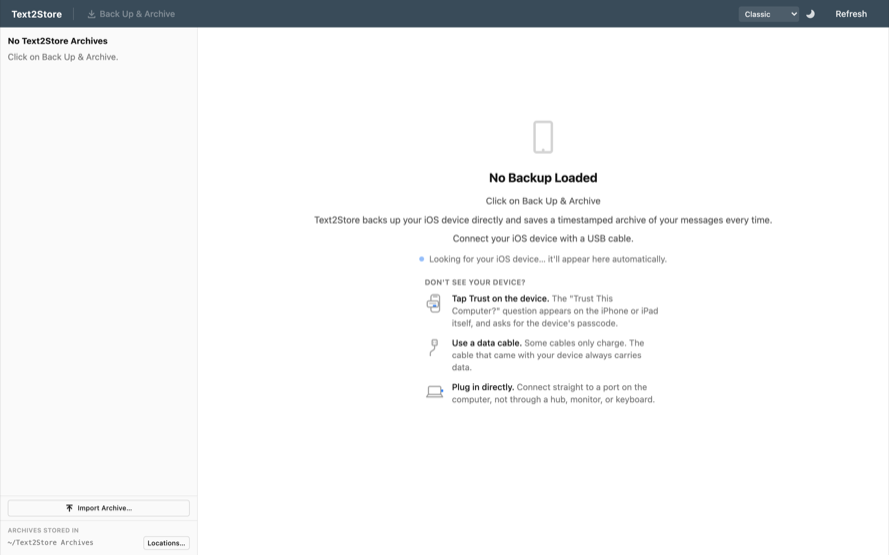
The checklist
- Unlock the device. A locked iPhone can connect but often won't pair. Unlock it and keep the screen on for the first connection.
- Use a data cable. Many charging cables carry power only and will never work. The cable that came with the device is the safe choice; if in doubt, try another cable before anything else.
- Plug into the computer itself. Ports on hubs, monitors, and keyboards drop device connections. Use a port directly on the Mac or PC.
- Watch for the Trust prompt. The device must trust this computer: unlock it, tap Trust, and enter the device passcode. Tapped "Don't Trust" by mistake, or no prompt at all? Unplug and plug back in; the device asks again.
- Click Refresh. In Text2Store's top bar, Refresh rescans for connected devices.
- Restart both. Restart the device and the computer; it resolves a surprising share of stubborn cases.
- Windows: repair the Apple drivers. The connection relies on Apple's device support software, which the Text2Store installer sets up. If the device still never appears, reinstall Text2Store to repair the drivers, then reconnect.
- Mac: allow the accessory. If macOS asks whether to allow the accessory to connect, allow it. The prompt can hide behind other windows.
Still stuck?
Use Help → Report a Problem in the app, which pre-fills an email with your app version and the last error, or write to hello@text2store.com and describe what you see; we answer.