
Encrypted backups
What the backup password is, where to enter it, and the honest truth about losing it.
The short version
If your device has backup encryption turned on, its backups are protected by a password you set on the device. Text2Store works with encrypted backups fully; it just needs that password to open them, and it never writes it to disk.
What the backup password is
Backup encryption is an iPhone and iPad feature: once turned on, every backup the device produces is encrypted with a password you chose, and that protection travels with the backup wherever it's stored. It's separate from the device passcode and from your Apple account password. Encrypted backups also carry more of your data than unencrypted ones, which is why many people keep encryption on deliberately.
Where you enter it in Text2Store
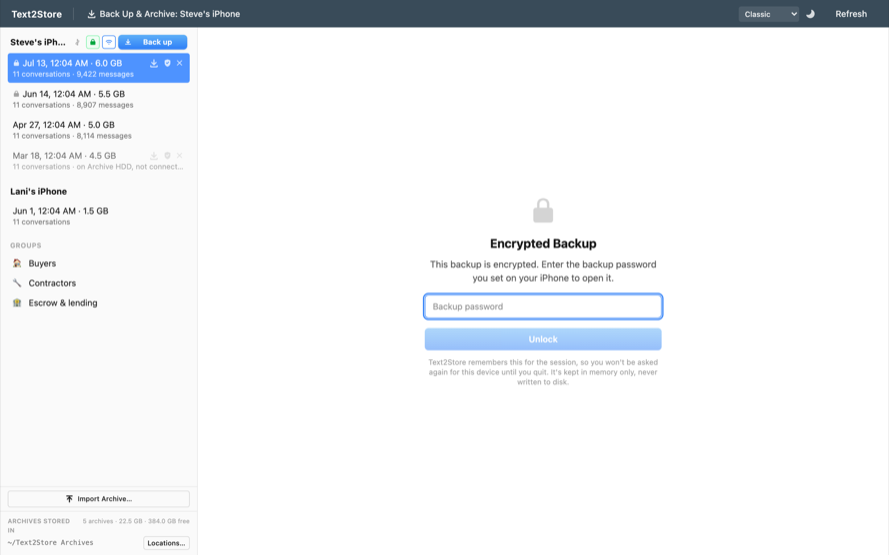
Open an encrypted backup or archive and Text2Store asks for the backup password once. It's kept in memory only, for this session: it is never written to disk, and quitting the app forgets it. The archive itself stays encrypted on your disk, so your stored history is protected at rest exactly as the device intended.
Turning encryption on or off
Text2Store can turn backup encryption on or off for a connected device (you'll confirm on the device). The change applies from the next backup onward; archives that already exist keep the state they were made with.
If you've forgotten the password
The honest truth: nobody can open an existing encrypted backup without its password, not Apple, not us, and by design not anyone else. That's what the encryption is for.
What you can do is reset backup encryption on the device so that future backups use a new password: on the iPhone or iPad, go to Settings → General → Transfer or Reset → Reset → Reset All Settings. This keeps your apps and data but resets settings including the backup password. Afterward, make a fresh backup in Text2Store with a new password you'll remember. Your old encrypted archives remain locked with the old password, so keep them in case it comes back to you. Apple's guide: About encrypted backups.
Still stuck?
Email hello@text2store.com and we'll help.