
Getting started
From download to a browsable archive of your messages, in four steps and one cable.
The short version
Install the app, plug in your iPhone or iPad with a data cable, tap Trust on the device, and click Back up. The first backup takes a while; every one after copies only what changed.
1. Install the app
Download Text2Store for your computer. On a Mac, open the .dmg and drag Text2Store into Applications. On Windows, run the installer; it also sets up the Apple device drivers the connection needs, so there's nothing else to install.
2. Connect your device
Plug your iPhone or iPad into the computer with a cable that carries data, ideally the one that came with the device (some charging cables are power-only and will never work). Plug into a port on the computer itself rather than a hub or monitor. The device appears in Text2Store's sidebar within a few seconds.
3. Trust this computer
The first time you connect, the device asks whether to trust this computer. Unlock the device, tap Trust, and enter its passcode. Text2Store walks you through this and updates as soon as trust is granted. If the prompt never appeared, unplug and plug back in; the device asks again.
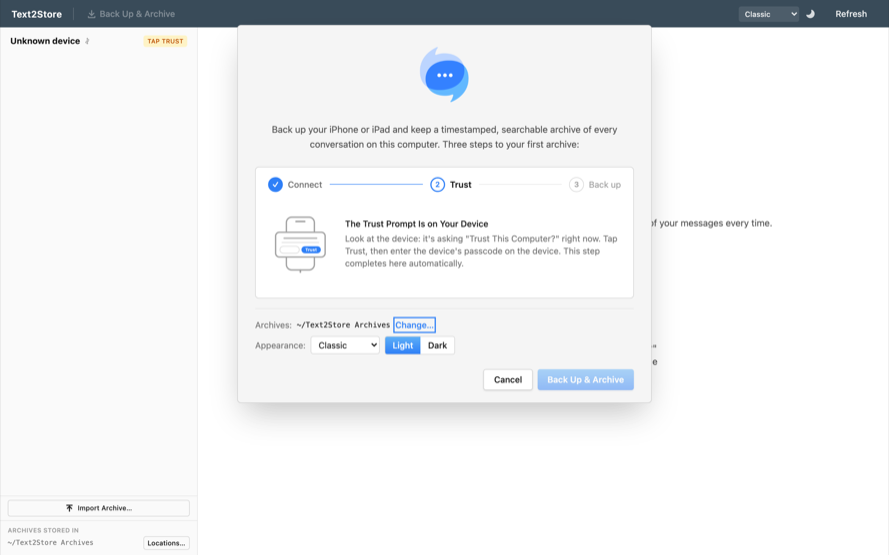
4. Make your first backup
Click Back up. Before starting, the app estimates how long the first backup will take based on how much is on the device. Keep the device connected and the computer awake; the device itself can be locked while it copies. When it finishes, Text2Store saves the snapshot as an archive: a timestamped copy that is kept even after future backups.
Every later backup copies only what changed since last time, so follow-ups are usually much quicker. If you prefer, backups can also run over Wi-Fi once a device has been set up by cable.
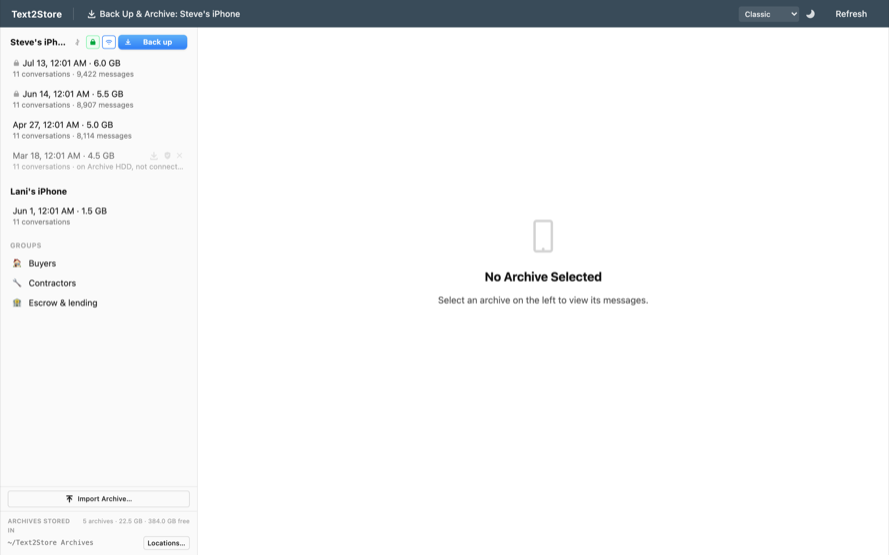
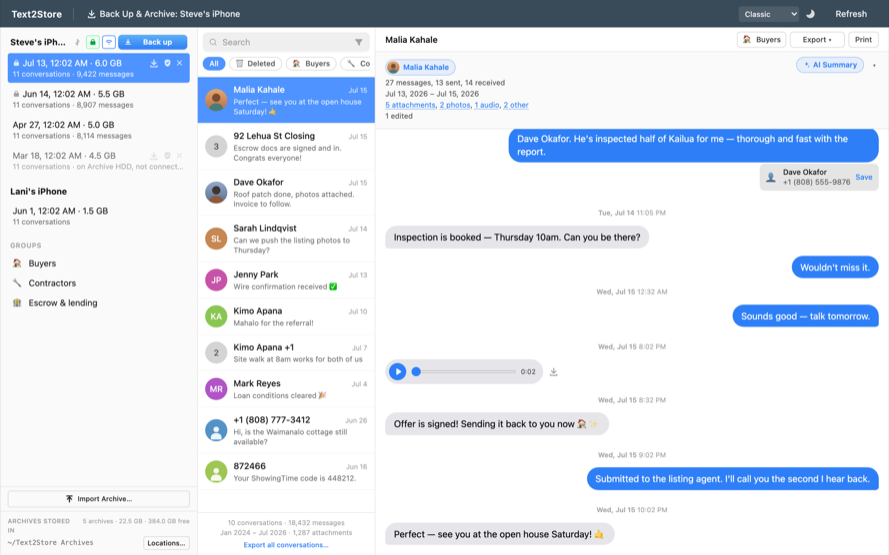
5. Read, search, and export
Select an archive in the sidebar to open it: conversations on the left, messages on the right, attachments included. Reading one conversation of your choice is free; a subscription unlocks every conversation, full-text search, AI summaries, and export to PDF, CSV, plain text, or a verified .zip.
What happens next
Back up whenever you want a new snapshot; each archive is independent, so older ones are never overwritten. Archives live in a folder you choose (see Locations in the app), and an external drive works well if your history is large.
Still stuck?
If the device never shows up, work through the connection checklist. For anything else, email hello@text2store.com.