
Where Text2Store keeps things, and what the sizes mean
Two kinds of data, two homes: your archives live in a folder you chose, and each device's working backup lives on your computer. Every number in the sidebar is accounted for here.
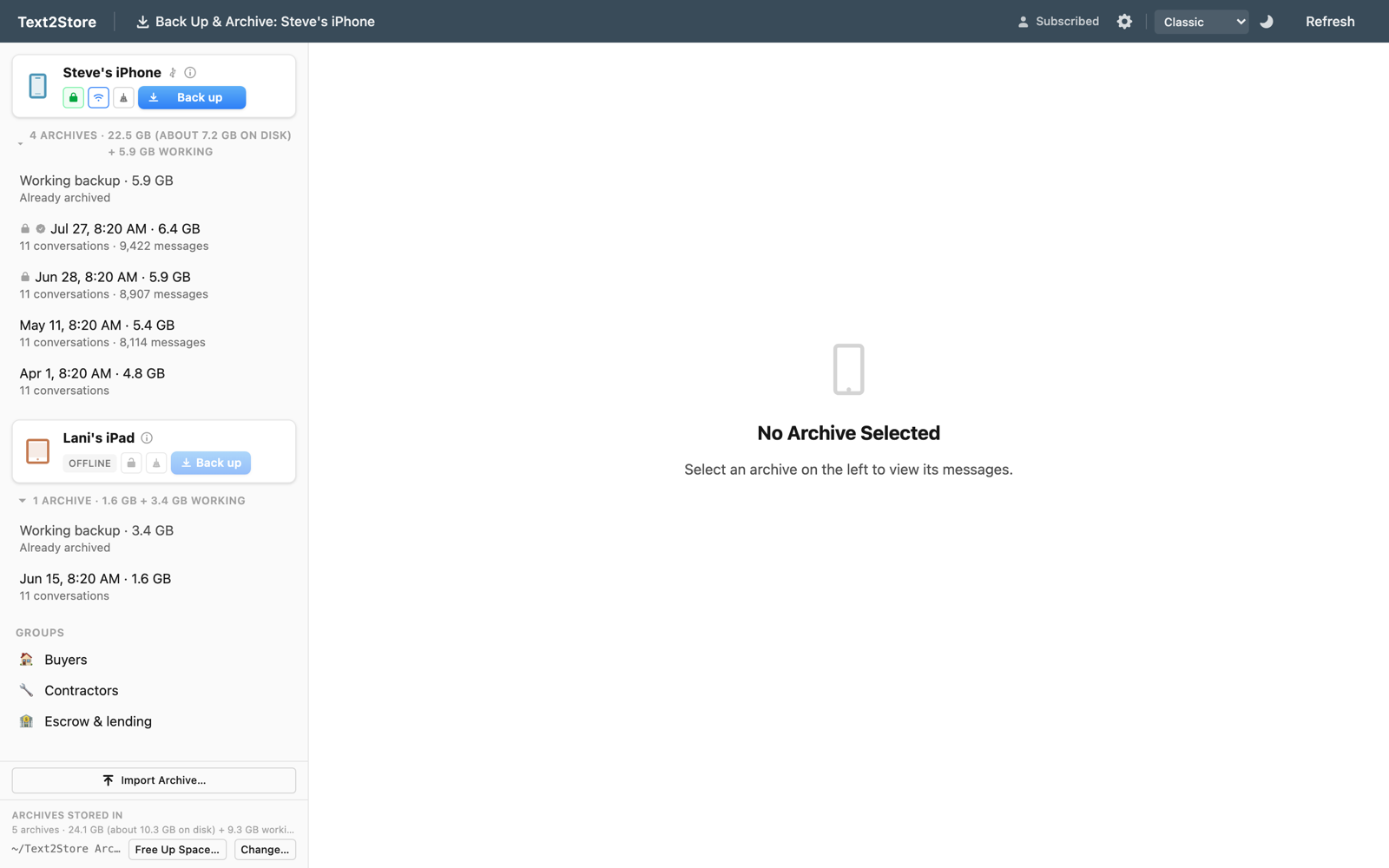
The two homes
Archives are the record: complete, dated snapshots of your messages. They live in the folder shown at the bottom of the sidebar (by default Documents/Text2Store Backups), and that folder holds only archives. Point it at an external drive and your record travels with the drive; copy the whole folder and you have copied your record.
The working backup is different: it is the raw copy of your device that the app syncs into, kept only so the next backup can transfer just what changed instead of everything. It is rebuildable at any time and lives on your computer's own disk, in Library/Application Support/Text2Store on a Mac, so an external archive drive never carries a large cache it does not need, and syncs write at internal-disk speed.
What each number means
- Per-archive sizes ("2.7 GB") are the archive's full contents: what it holds, and what it would cost to export as a bundle or copy to another drive.
- "+ X GB working" in a device's section header and the storage footer is the device's working backup. It is a cache, and the space is reclaimable (see below).
- "(about X on disk)", when it appears, is the honest cost of your archives on this disk. On a Mac, archives of a mostly-unchanged device share their identical data at the file-system level, so several snapshots can occupy far less than the sum of their sizes. Text2Store shows this figure only after verifying with the file system that the sharing is real; if you never see it, your archives genuinely cost their listed sizes (typical on Windows, on ExFAT external drives, and for imported archives). The full story is in why two archives can take up the space of one.
- The free-space figure in the footer comes straight from the file system and is always the ground truth for how much room you have.
Freeing up space, safest first
- Reset a working backup. Zero risk to your record. Open a device's details (the i button) and use Reset working backup; the panel shows exactly how much it frees. The only cost is that the device's next backup is a full one.
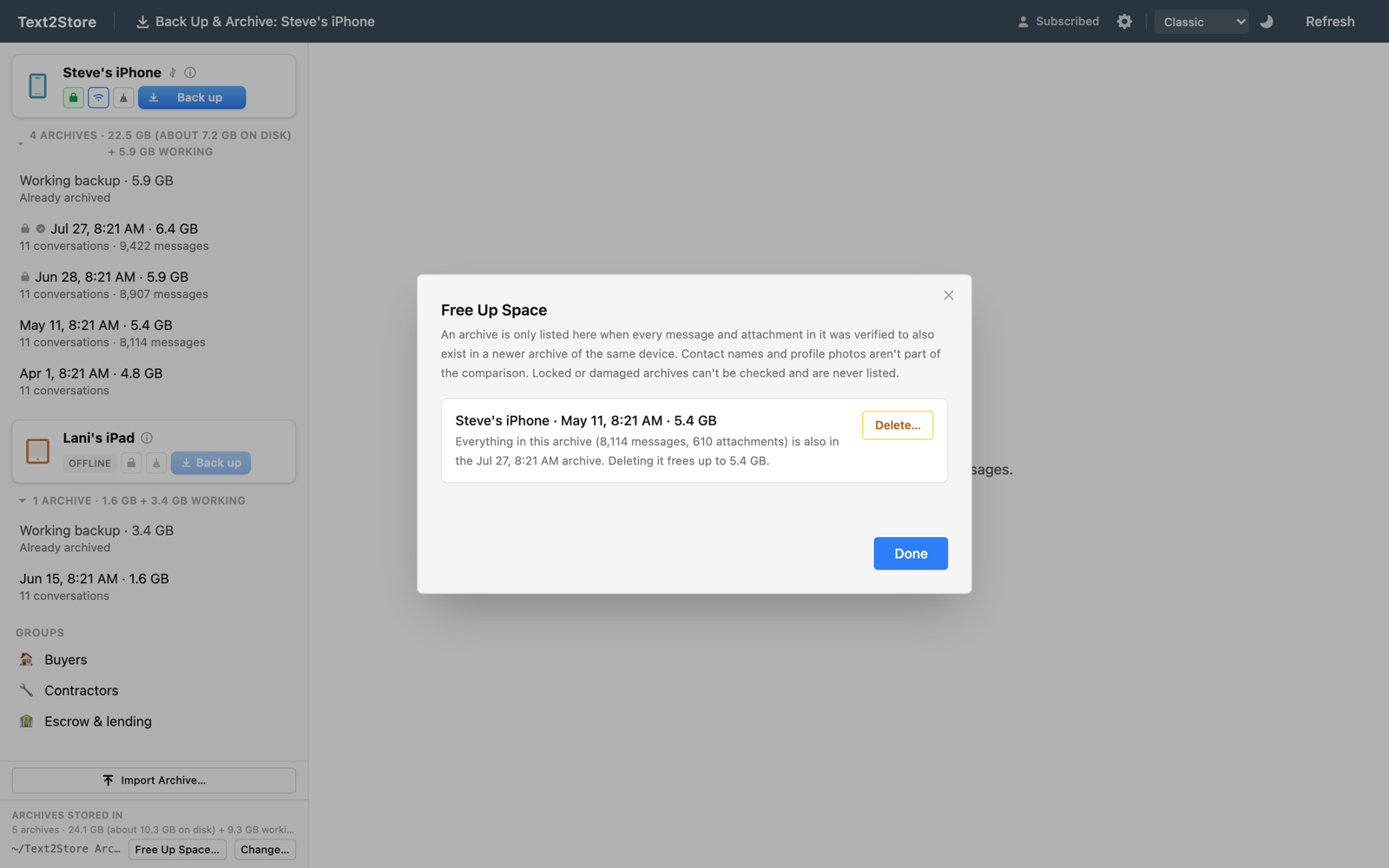
- Free Up Space. The button beside the folder path lists archives whose entire contents, every message and attachment, were verified to also exist in a newer archive of the same device. Deleting one of those removes no unique data; the listing says how much it frees, "up to" because shared storage means a near-identical archive can cost less than its size. Nothing is ever deleted automatically.
- Delete archives by hand. The ✕ on any archive row. The confirmation warns you when an archive is the last one for a device. Remember that older archives can be the only place a since-deleted conversation still exists; that is the whole point of keeping them.
- Move archives to a bigger drive. Use Change… in the footer to point the app at a folder on an external drive. Archives in the old folder stay on disk; choose that folder again anytime to see them.
Small internal disk, big phone?
The working backup normally lives on your computer's disk. If your Mac does not have room for a large phone's working copy but your archive folder's drive does, the pre-backup space check will offer to keep that device's working copy in the archives folder instead. Syncs for that device then write to that drive, which can be slower over USB, but the backup fits.
Questions?
Use Help → Report a Problem in the app, or write to hello@text2store.com and tell us what you see; we answer.