
Export iPhone text messages to CSV
Get your texts and WhatsApp chats into a spreadsheet, one row per message: date, sender, text, and attachment names. One conversation, or every conversation at once, on your Mac or PC.
The iPhone has no way to export a conversation to a spreadsheet. Text2Store gets there from an ordinary iPhone backup: it makes the backup on your own computer over a USB cable, shows you the conversations, and writes any of them out as a CSV file that opens in Excel, Numbers, or Google Sheets.
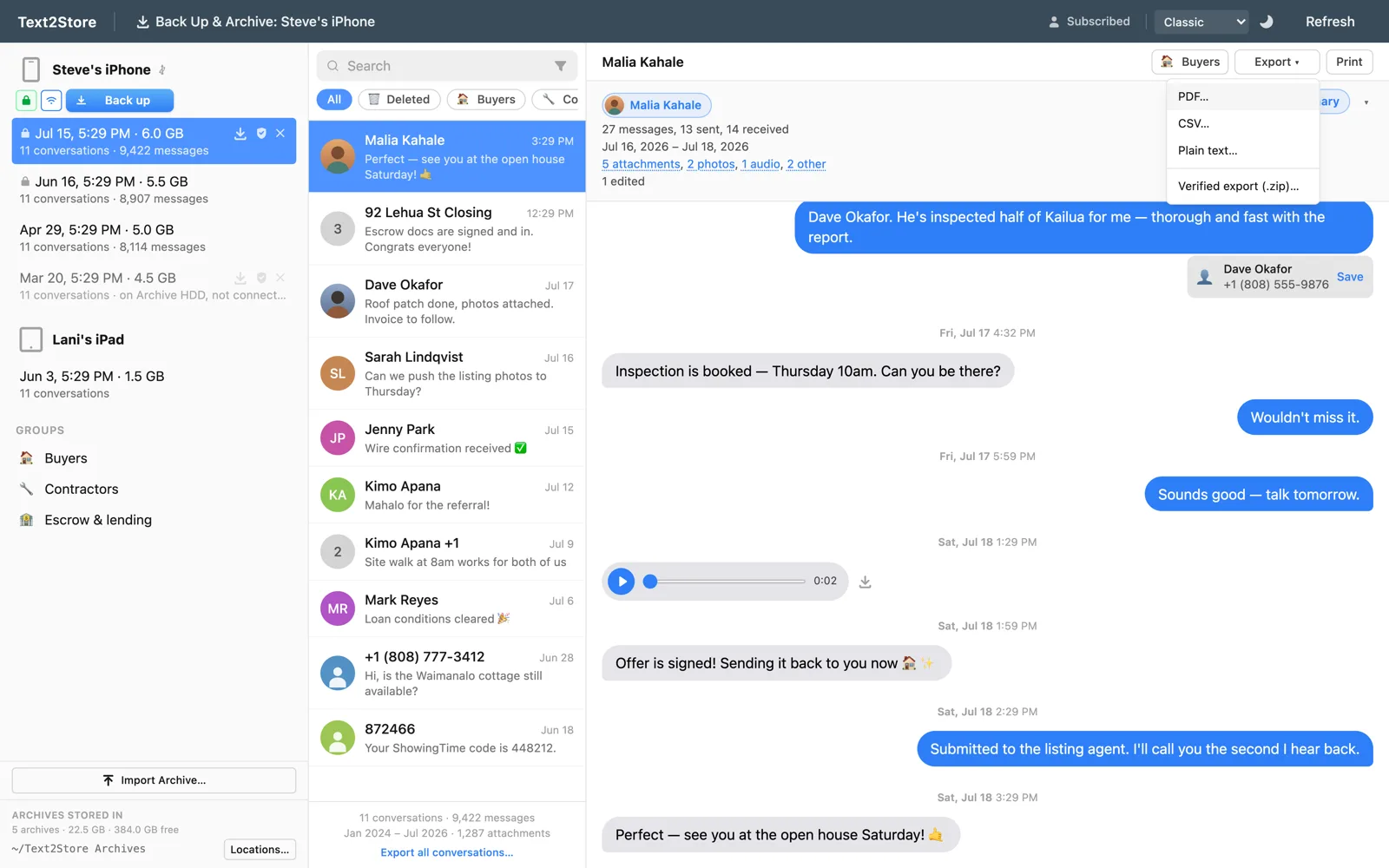
How to export texts to CSV
- Install Text2Store on Mac or Windows. On Windows, one extra setup step comes first.
- Connect the iPhone with a USB cable, tap Trust, and click Back Up.
- Open a conversation and choose Export to CSV. You can limit it to a date range.
- For every conversation at once, use Export all conversations at the bottom of the conversation list and pick CSV. Each conversation gets its own file.
What's in the file
One row per message, with four columns, always in this order:
| Column | What it holds |
|---|---|
| Date | When it was sent, such as Mon, Nov 9, 2026, 2:27 PM |
| From | Who sent it, by contact name where the backup has one |
| Text | The message itself |
| Attachments | The names of any photos, videos, or files, separated by semicolons |
The headings follow the language the app is set to. If you're feeding the file to a script, go by column position, not heading.
Before you start working in the spreadsheet
- Dates are text. They're written for people to read, so a spreadsheet may not treat them as real dates. Rows start out in conversation order; convert the column before you sort or filter by date.
- A note may lead the file. When an export leaves something out, the very first row says what, above the column headings, so it can't get lost. Skip that row if you're importing the data.
- Cells that look like formulas are made safe. A message beginning with =, +, -, or @ gets a leading apostrophe, so it can't run as a formula when you open the file.
When CSV is the wrong format
CSV is for counting, filtering, and analysis. It lists attachments by name and doesn't include them. If you want a copy of the conversation that reads the way it looked, with photos, export a PDF. For WhatsApp on a PC, see WhatsApp to PDF on Windows. All the export formats, compared.
Common questions
How do I export iPhone text messages to CSV?
Back up the iPhone to your Mac or PC with Text2Store, open a conversation, and choose Export to CSV. To do every conversation at once, use Export all conversations and pick CSV.
Will a CSV file open in Excel?
Yes. A CSV opens in Excel, Numbers, and Google Sheets.
What columns does the CSV have?
Four, always in this order: Date, From, Text, and Attachments. The column headings follow the language the app is set to, so if you process the file automatically, go by column position.
Does the CSV include photos?
No. The Attachments column lists file names. If you want the photos in the document, export a PDF instead.
Can I put every conversation into one spreadsheet?
Not directly. Bulk export writes one CSV file per conversation.
Can I export WhatsApp chats to CSV too?
Yes. WhatsApp chats come out of the same iPhone backup and export the same way.
Is CSV export free?
The free version exports each conversation's 3 most recent messages so you can check the output. Exporting whole conversations is a $29.99 one-time purchase.
Try it on your own messages
Download Text2Store and back up your iPhone. You can export each conversation's 3 most recent messages to see the file before paying anything. Questions go to hello@text2store.com.