
Export iPhone text messages to PDF
Complete conversations, not screenshots: every message with its date, time, and clear sender attribution, photos placed where they were sent, and threads of any length. On your own computer, Mac or Windows.
Two minutes, start to finish: download, back up the phone, export the conversation.
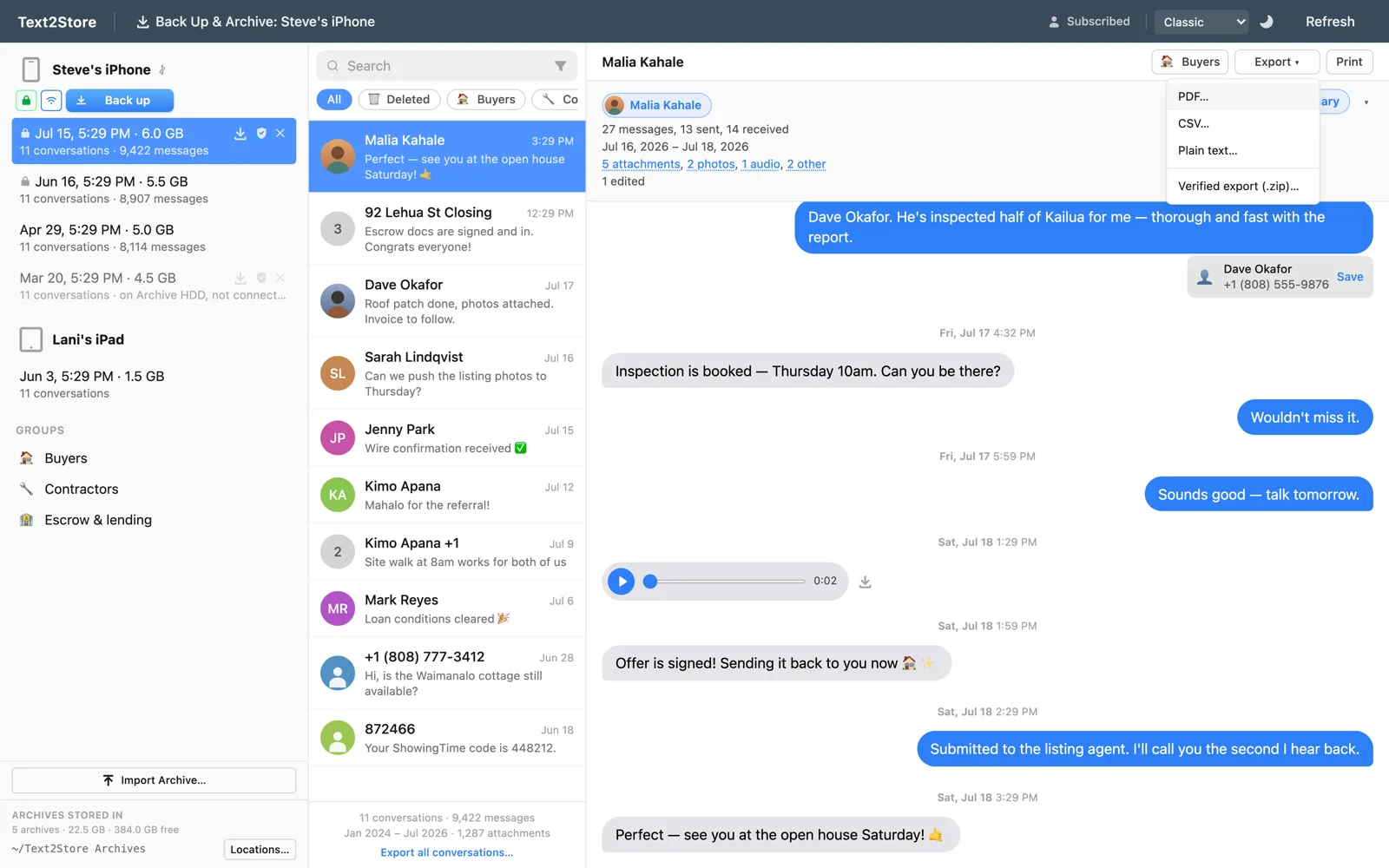
To export iPhone messages to PDF you need the conversation off the phone first, because the iPhone has no built-in way to get one out as a document. Whichever way you word it, exporting text messages from iPhone to PDF starts with a backup. Screenshots work for a handful of messages and fall apart at scale: a screen at a time, no metadata, miserable to assemble, easy to challenge. Text2Store takes the direct route: it backs up your iPhone to your computer, turns the backup into a readable backup, and exports any conversation as a clean, paginated PDF.
Other ways people try this, and where they run into trouble
- Screenshots. Fine for a handful of messages, miserable past that: a screen at a time, no timestamps beyond what happens to be visible, and no way to prove nothing was cropped out.
- Mac Messages, File > Print. Only works if the conversation already synced to a Mac over iCloud, prints only what's currently scrolled into the window, and tends to separate photos from the messages they belong to on long threads. The full account is in printing a whole iMessage thread.
- Windows has no path at all on its own. Apple Messages doesn't run on Windows, so a PC needs a tool that reads the iPhone backup directly rather than relying on the Messages app to export anything.
- Other backup tools. iMazing, TouchCopy, and similar apps read the same iPhone backup and can also produce a PDF; where they tend to differ is thread completeness past tens of thousands of messages and whether deleted messages get flagged rather than silently dropped. See the iMazing comparison.
PDF is one of several formats, and it is not always the right one. If you are still deciding, exporting text messages from an iPhone covers the whole picture: CSV for spreadsheets, plain text, printing, and how the backup step works.
What ends up in the PDF
- Every message, stamped. Date and time on each message; group messages carry the sender's name, and one-to-one messages are laid out sent versus received, the way the phone shows them. The document states which conversation it came from and the date the backup was backed up. Edited messages are marked as edited.
- Photos inline, where they were sent; videos and other attachments appear as clearly labeled entries with their file name and size.
- Deleted messages handled honestly. Messages deleted on the iPhone that an older backup still contains are clearly flagged, and if an export omits them, the document says so. Nothing quietly misrepresents the record.
- Whole threads, whatever the size. Long conversations export in parts and merge into one PDF automatically, each part labeled by its message range. A real years-long thread past 80,000 messages has exported cleanly, far beyond the point where exports commonly fail.
The steps
- Install Text2Store. Get it here; backing up and browsing are free.
- Back up your iPhone. Connect with a USB cable, tap Trust on the phone, click Back Up. The backup lands on your computer as a dated backup; after the first trusted connection, later backups can run over Wi-Fi.
- Open the conversation. Threads appear like a messages app: Apple Messages and WhatsApp, with photos, voice notes, and reactions where they belong.
- Export > PDF. Choose the whole conversation or a date range, pick where to save, done. (Backing up and searching are free, and so is exporting the 3 most recent messages of any conversation. Exporting whole conversations needs the $29.99 one-time purchase, which covers every device and computer you own.)
Exporting everything at once
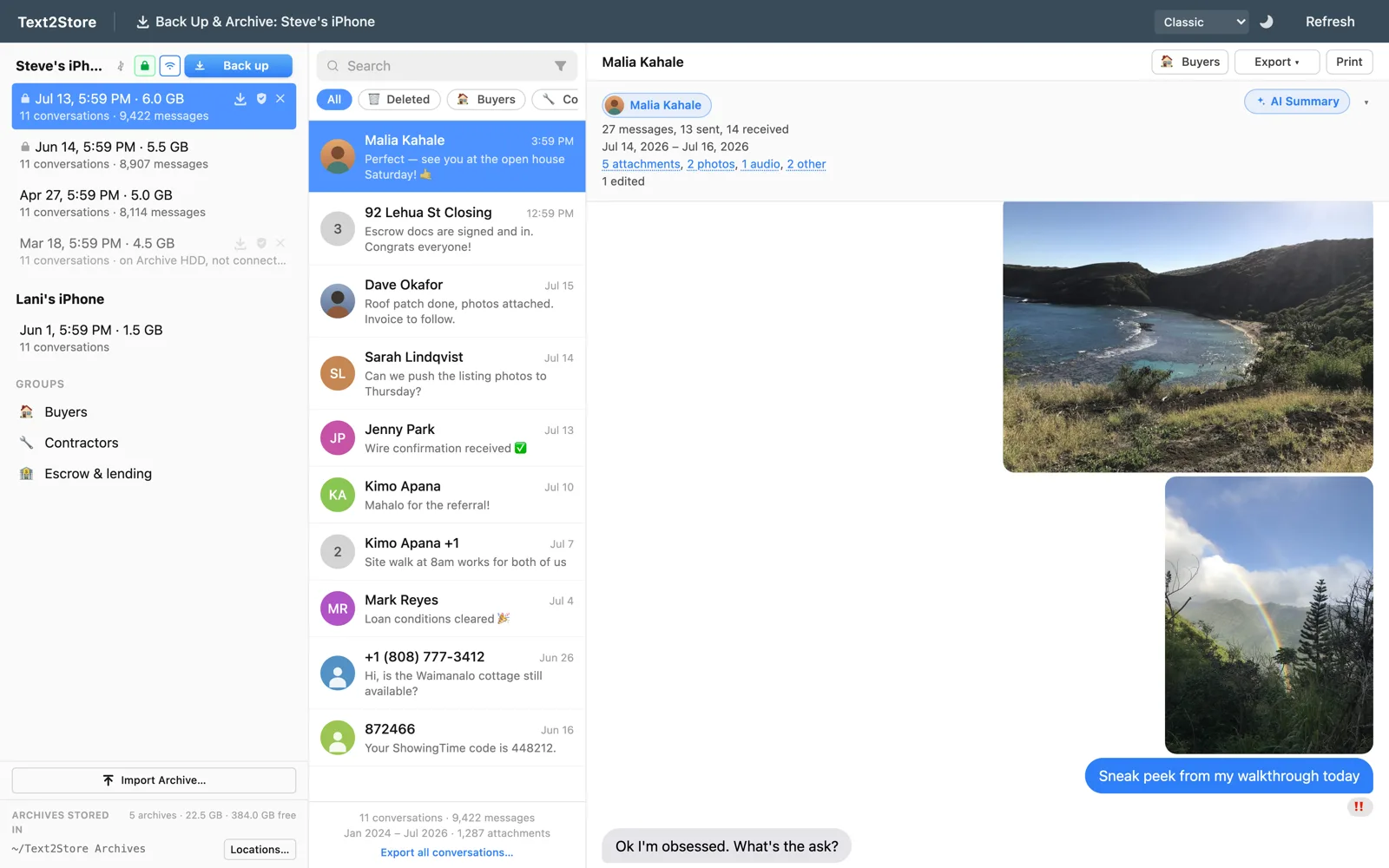
Bulk export writes every conversation in a backup to a folder of files, PDF included, each named for its conversation, with an optional date range across the whole run. One click, then coffee.
If the export needs to prove itself
A PDF is readable, but it can't show whether it was altered after export. When that matters, a certified backup and verified export add an independent DigiCert timestamp and per-file checksums, so anyone can confirm with standard tools that the files haven't changed since they were created. For review platforms, there's RSMF export too. Same conversations, sturdier containers.
Common questions
Does the PDF include photos?
Photos, yes, inline where they were sent. Videos and other attachments appear as clearly labeled entries with their file name and size.
Does every message show its date and time?
Yes, every message shows its date and time; group messages carry the sender's name, and one-to-one messages are laid out sent versus received. The document states which conversation it came from and the date the backup was backed up.
Can it handle a years-long conversation?
Yes. Long threads export in parts and merge into one PDF automatically, each part labeled by its message range. A real conversation past 80,000 messages has exported cleanly.
Can I export WhatsApp chats to PDF too?
Yes. WhatsApp conversations come out of the same iPhone backup and export the same way as Apple Messages.
Can I export every conversation at once?
Yes, with the bulk export, optionally date-limited.
Do I need iTunes?
No. Text2Store makes the backup itself over USB or Wi-Fi.
Does this work on Windows, or only on a Mac?
Both. Text2Store runs natively on Windows and macOS and backs up the iPhone itself, so nothing here depends on Apple's Messages app or on having a Mac at all.
Can I export just a date range instead of the whole conversation?
Yes, for a single conversation and for the bulk export across an entire backup.
What if my iPhone backup is encrypted?
It opens the same way. Enter the backup password once per session and the conversation reads and exports normally; the password is never written to disk.
Questions?
Email hello@text2store.com and we'll help. Or just try it, backing up is free.