
How to export text messages from an iPhone
Whole conversations onto your own computer, photos and timestamps included, as a PDF, a spreadsheet, plain text, or straight to a printer. Mac and Windows, no iCloud subscription, and the backup stays on your machine.
The iPhone has no built-in way to get a conversation out. You can screenshot a few messages or forward them one at a time, and that is genuinely all Apple gives you. Every real way to export messages from iPhone runs through the same route: back the phone up to a computer, then read and export from the backup. That is what Text2Store does, and it is why the whole thread comes out rather than the last screen of it.
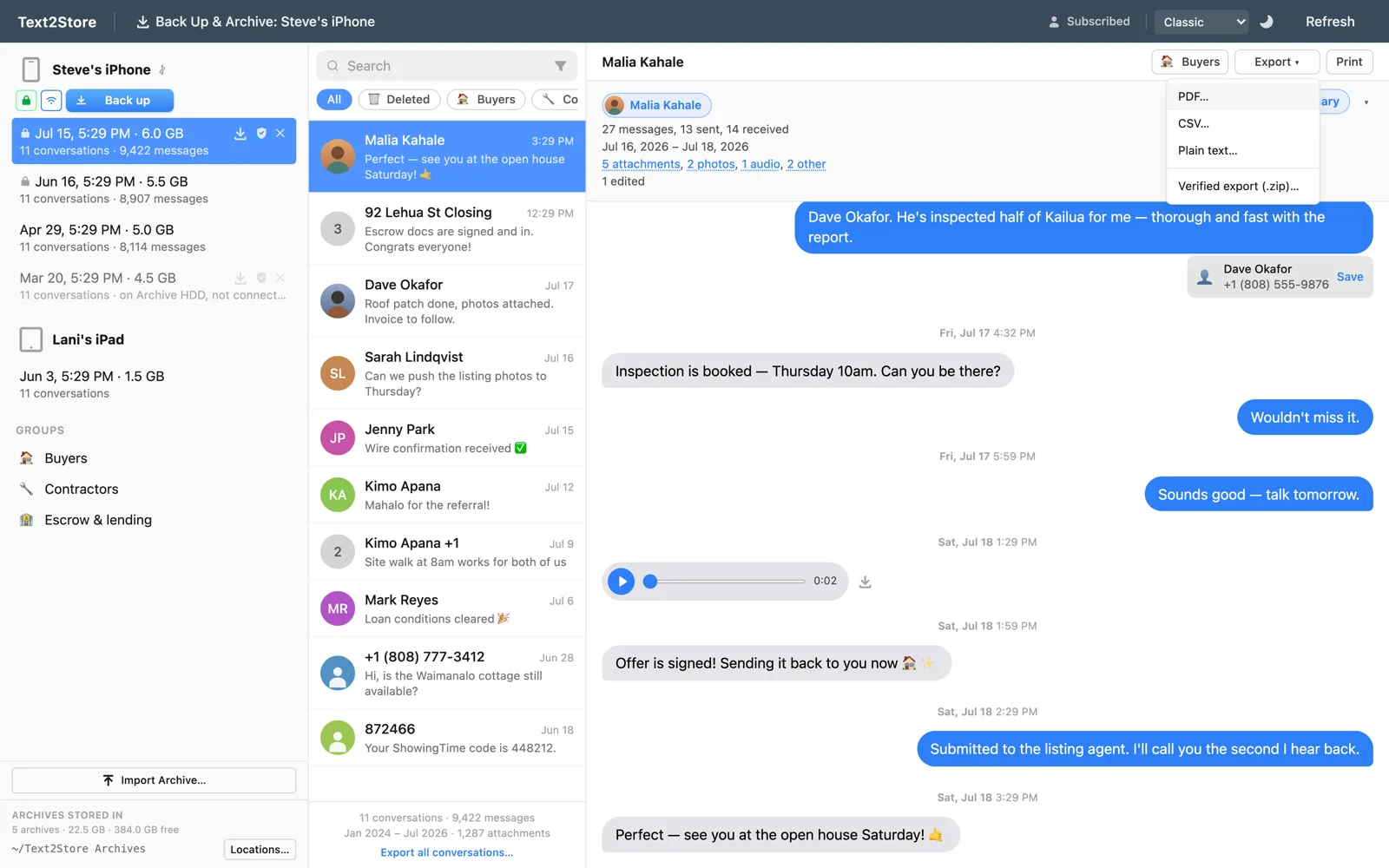
How to export messages from iPhone, in four steps
- Install Text2Store. Get it here for Mac or Windows. Backing up, browsing, and searching are free.
- Back up the iPhone. Connect it with a USB cable, tap Trust on the phone, and click Back Up. The backup lands on your computer as a dated copy. After the first trusted connection, later backups can run over Wi-Fi.
- Open the conversation. Threads appear like a messages app, with photos, voice notes, and reactions where they belong.
- Choose Export, then a format. Take the whole conversation or a date range, pick where to save it, and you are done.
Nothing is uploaded anywhere. The backup and everything you export from it sit on your own disk, which is also why this works without an iCloud plan and without paying per device.
Which format do you want?
Most people arrive wanting "the messages off my phone" and only then discover the format matters. The short guide:
| Format | Best for | Keeps photos? |
|---|---|---|
| Reading, sharing, and keeping a conversation as a document | Yes, inline where they were sent | |
| Paper copies of a whole thread | Yes | |
| CSV | Spreadsheets, sorting, counting, and analysis | No, listed as file names |
| Plain text | Searching with other tools, or the smallest possible file | No, listed as file names |
| RSMF | Loading into an eDiscovery review platform | Yes, carried inside the package |
If you are not sure, take the PDF. It is the one that reads like the conversation actually looked, and it is the format people mean when they say they want a copy of their texts.
Export, download, save, transfer
People describe this job in about six different ways and mean the same thing by all of them. Whether you want to export text messages from iPhone, download text messages from iPhone to a computer, save text messages from iPhone to computer, or transfer text messages from iPhone to computer, the path above is the one that works, and what you end up with is a file on your own disk rather than a view inside an app.
The same goes for the message types. The steps that export SMS from iPhone also export iMessage conversation threads and WhatsApp chats; they are not three different procedures, because all of it comes out of the same backup in whichever format you choose.
The one distinction worth making is archive versus export. Backing up puts the whole phone's message history on your computer and keeps it. Exporting takes one conversation out of that history as a document. You need the first before you can do the second, which is why the backup step is not optional.
SMS, iMessage, and WhatsApp all come out together
Green-bubble SMS and blue-bubble iMessages sit in the same conversation on the phone, and they export the same way, in order, without you having to separate them. Group threads carry each sender's name. WhatsApp chats live in the same iPhone backup and export identically, which surprises people who assumed they needed a second tool. Voice notes, reactions, and attachments come along too.
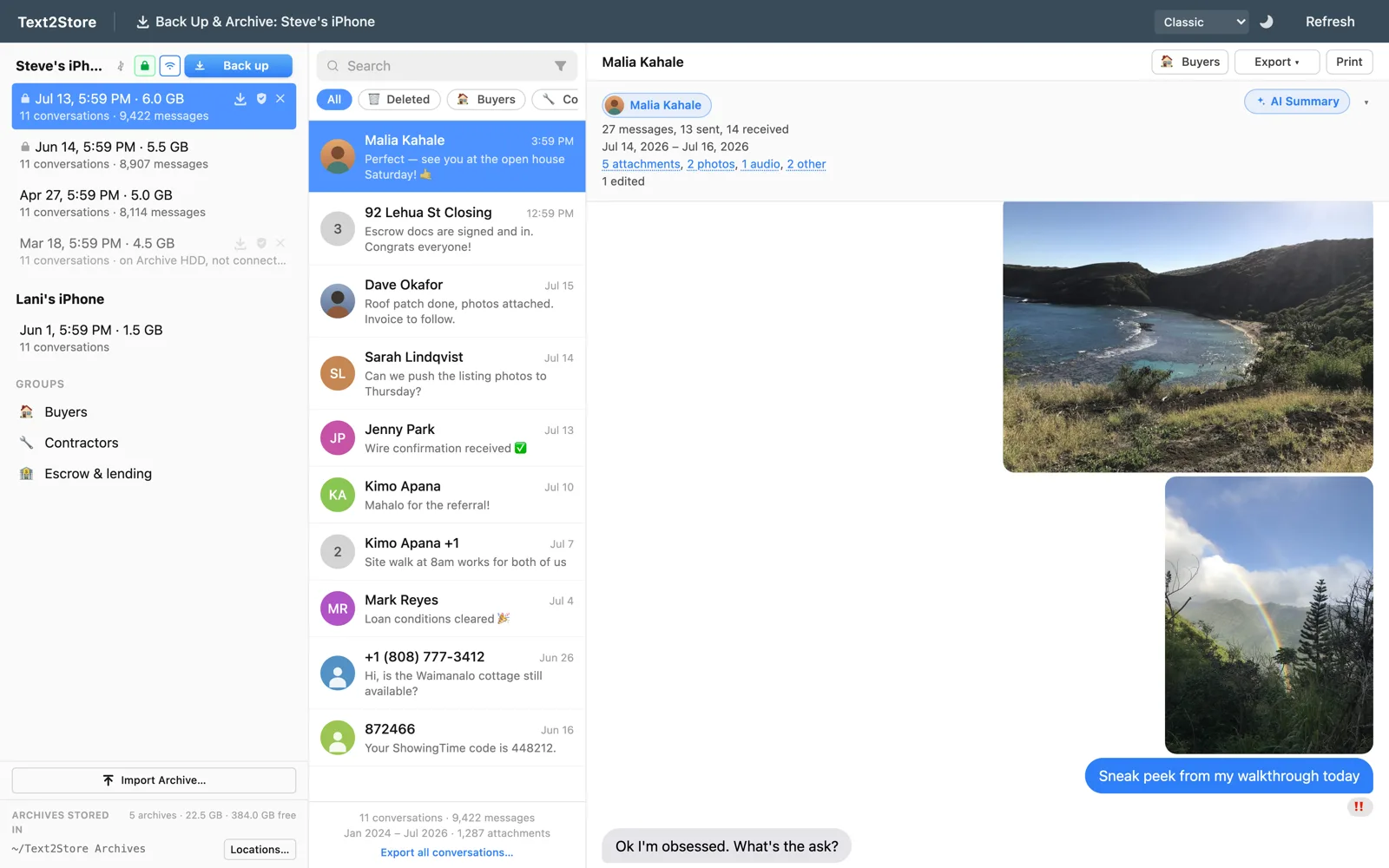
Exporting everything, not one thread at a time
If you want the lot, bulk export writes every conversation in a backup to a folder of files in one run, each named for its conversation, with an optional date range applied across all of them. It is the right tool when you are handing over a whole history, changing phones, or simply want the archive on disk in a readable form.
Messages you already deleted
This depends entirely on timing. Text2Store keeps every backup instead of overwriting the previous one, so a thread you deleted last month is often still sitting in a backup from before you deleted it, and you can open that date and export from it. What no tool can do is recover a message that was never backed up in the first place. If the messages still matter, the useful move is to back up now, before anything else gets cleared.
Mac and Windows
Text2Store runs natively on both. This matters more on Windows, where Apple's Messages app does not exist at all, so there is no built-in path to try first. Backing up text messages from iPhone to PC works exactly as it does on a Mac. On Windows the app needs Apple's free Apple Devices app installed for device support: open it once after installing, which starts the background service, and you never need to open it again. Text2Store checks for it and walks you through it if it is missing.
What you can do for free
Backing up, browsing, and searching your whole history are free and stay free, with no time limit. Opening a conversation shows its three most recent messages, and exporting is free for those same three, so you can confirm the file format looks right before paying anything. Exporting whole conversations needs the $29.99 one-time purchase, which covers every iPhone, iPad, and computer you own. No subscription, and nothing renews.
Common questions
How do I export text messages from my iPhone to my computer?
Back the phone up to the computer, then export from the backup. Text2Store makes the backup itself over USB, shows the conversations like a messages app, and exports any thread as PDF, CSV, plain text, or straight to a printer.
How do I download text messages from iPhone to a computer?
The same way as exporting: back up, then export. Bulk export will also download every conversation in a backup at once, into a folder of files in the format you pick.
Is there an app to export text messages from iPhone?
This one. Text2Store is a desktop app for Mac and Windows, free to download and free for backing up and searching, with a one-time purchase to unlock exporting whole conversations.
Can I export SMS from iPhone as well as iMessages?
Yes, together and in order, exactly as the phone shows them. WhatsApp chats come out of the same backup too.
Do I need iTunes or iCloud?
Neither. Text2Store makes the backup itself over USB or Wi-Fi. On Windows it needs Apple's free Apple Devices app installed for device support, opened once and then never again.
Does this work on Windows, or only on a Mac?
Both, natively.
Will it get messages I deleted from my phone?
Only if a backup made before the deletion still has them, which is often the case because backups are kept rather than overwritten. Nothing can recover a message that was never backed up.
How far back does it go?
As far as your phone's own history goes. A real thread past 80,000 messages has exported cleanly, and All Messages merges every backup for a device into one continuous history.
Start with one backup
Download Text2Store and back the phone up; that part is free and it is the step everything else depends on. Once the conversations are on your computer you can decide what you actually want out of them, whether that is a PDF, a printout, a spreadsheet, or just the ability to find something from years ago. Questions go to hello@text2store.com.