
How to back up iPhone text messages to a Windows PC
Whole conversations onto your own PC, with photos, timestamps, and WhatsApp chats included. Windows 10 and 11, no iCloud subscription, and nothing uploaded anywhere.
On a Mac, Apple at least gives you a Messages app to look at. On Windows there is nothing: no Messages app, and iCloud for Windows does not sync your texts. Microsoft's Phone Link can show and send texts while the phone is connected, but it is not a copy of your history. So the question "how do I get my texts onto my PC" has one real answer: back the iPhone up to the PC, then read the messages out of that backup. That is what Text2Store does.
One-time setup
- Install Text2Store from the Microsoft Store. The download page takes you there. Microsoft signs the build and keeps it updated, so there is no installer to trust and no SmartScreen warning.
- Install Apple's free Apple Devices app, then open it once. Windows needs Apple's device support to talk to an iPhone. Get Apple Devices from the Microsoft Store (iTunes works too) and launch it one time: its background service does not start until the app has been opened. You never need to open it again. Text2Store checks for it and walks you through it if it is missing.
Back up the messages
- Connect the iPhone with a USB data cable, plugged into the PC itself rather than a hub or monitor.
- Unlock the phone and tap Trust, then enter its passcode.
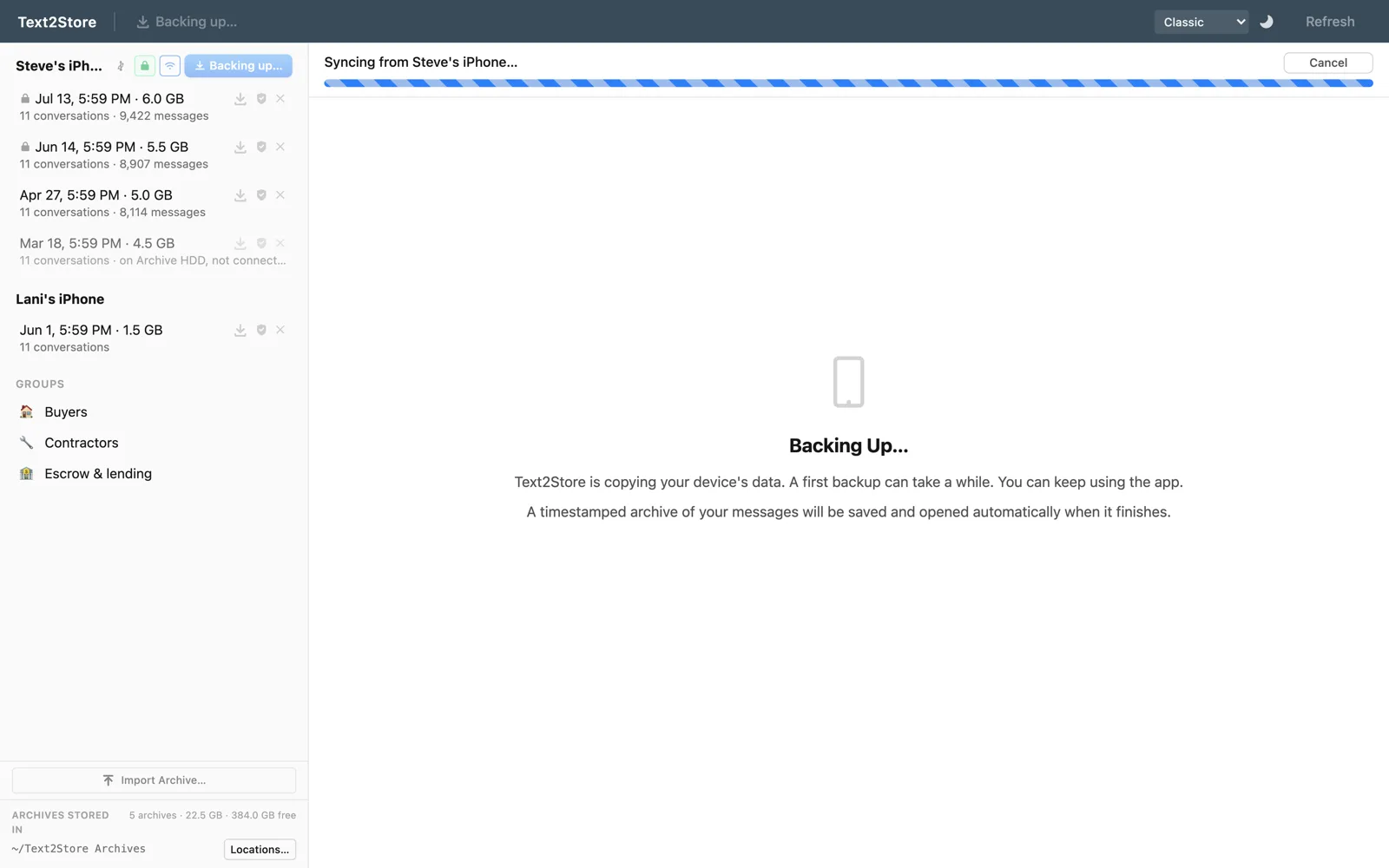
- Click Back Up. The first backup takes a while; every one after it copies only what changed, and later backups can run over Wi-Fi.
- Open the backup. Your conversations appear like a messages app, with photos, voice notes, and reactions in place, and WhatsApp chats in their own tab.
If the phone does not show up, it is nearly always the cable, the port, the Trust prompt, or Apple Devices never having been opened. The device-not-detected checklist covers each one in order. The getting started guide walks through the whole first run.
What you can do with them on the PC
- Search every message across every backup, as you type. Free.
- Read whole conversations, however long, with photos and attachments where they were sent.
- Export any conversation as a PDF, CSV, or plain text, or print it. Bulk export writes every conversation to a folder at once.
- Keep WhatsApp too. WhatsApp chats come out of the same iPhone backup, with no second app.
Encrypted backups
If the iPhone is set to make encrypted backups, Text2Store works with that: you enter the backup password and it reads everything as normal. Encrypted backups also include data a plain one leaves out. The encrypted backups guide explains when to turn it on and what happens if you forget the password.
Why the backups are kept, not replaced
A normal iPhone backup overwrites the previous one, so whatever the phone deleted since last time is gone from the backup too. Text2Store keeps every backup as its own dated archive and merges them into one history, so a thread deleted from the phone months ago is still on your PC as long as an earlier backup caught it. More on that in backup vs archive.
What about iCloud?
Messages in iCloud keeps your texts in sync across Apple devices; it is not a copy you own, and a deletion on one device deletes everywhere. It also has no Windows app for Messages. iCloud message backup, and what it doesn't do goes into the difference. Backing up to your PC gives you a copy that stays put no matter what happens on the phone or in iCloud.
What's free
Backing up, browsing, and searching your whole history are free and stay free, with no time limit. Every conversation shows its 3 most recent messages, and you can export those, so you can confirm it works on your own phone before paying. Reading and exporting whole conversations is a $29.99 one-time purchase that covers every iPhone, iPad, and computer you own. No subscription.
Common questions
How do I back up my iPhone text messages to my PC?
Install Text2Store from the Microsoft Store, install Apple's free Apple Devices app and open it once, then connect the iPhone by USB, tap Trust, and click Back Up. The messages land on your PC as a backup you can read, search, and export.
Is there a Messages app for Windows?
No. Apple does not make Messages for Windows, and iCloud for Windows does not sync texts. Microsoft's Phone Link can show texts while the phone is connected, but it does not keep a copy of your history. Backing the phone up to the PC is the way to have your messages on it.
Do I need iTunes?
No. Text2Store makes the backup itself. It does need Apple's device support, which comes with the free Apple Devices app from the Microsoft Store (iTunes also provides it). Open Apple Devices once after installing and you never need it again.
Which versions of Windows does it work on?
Windows 10 and Windows 11, 64-bit, installed through the Microsoft Store.
Can I transfer WhatsApp chats to my PC the same way?
Yes. WhatsApp chats are inside the same iPhone backup, so they come across with your texts and appear in their own tab, with the same search and exports.
Why isn't my iPhone showing up on my PC?
Usually a charge-only cable, a hub or monitor port, a missed Trust prompt, or Apple Devices installed but never opened. The device-not-detected checklist on the help page goes through each fix in order.
Start with one backup
Get Text2Store for Windows and back the phone up; that part is free, and it is the step everything else depends on. Questions go to hello@text2store.com. On a Mac instead? The same steps work there: see exporting text messages from an iPhone.