
Back up WhatsApp chats from your iPhone to your computer
Every chat, group, photo, and reaction, on your own Mac or PC, searchable and exportable as PDF, CSV, or plain text. It comes out of the same iPhone backup as your texts, with no pairing and no cloud.
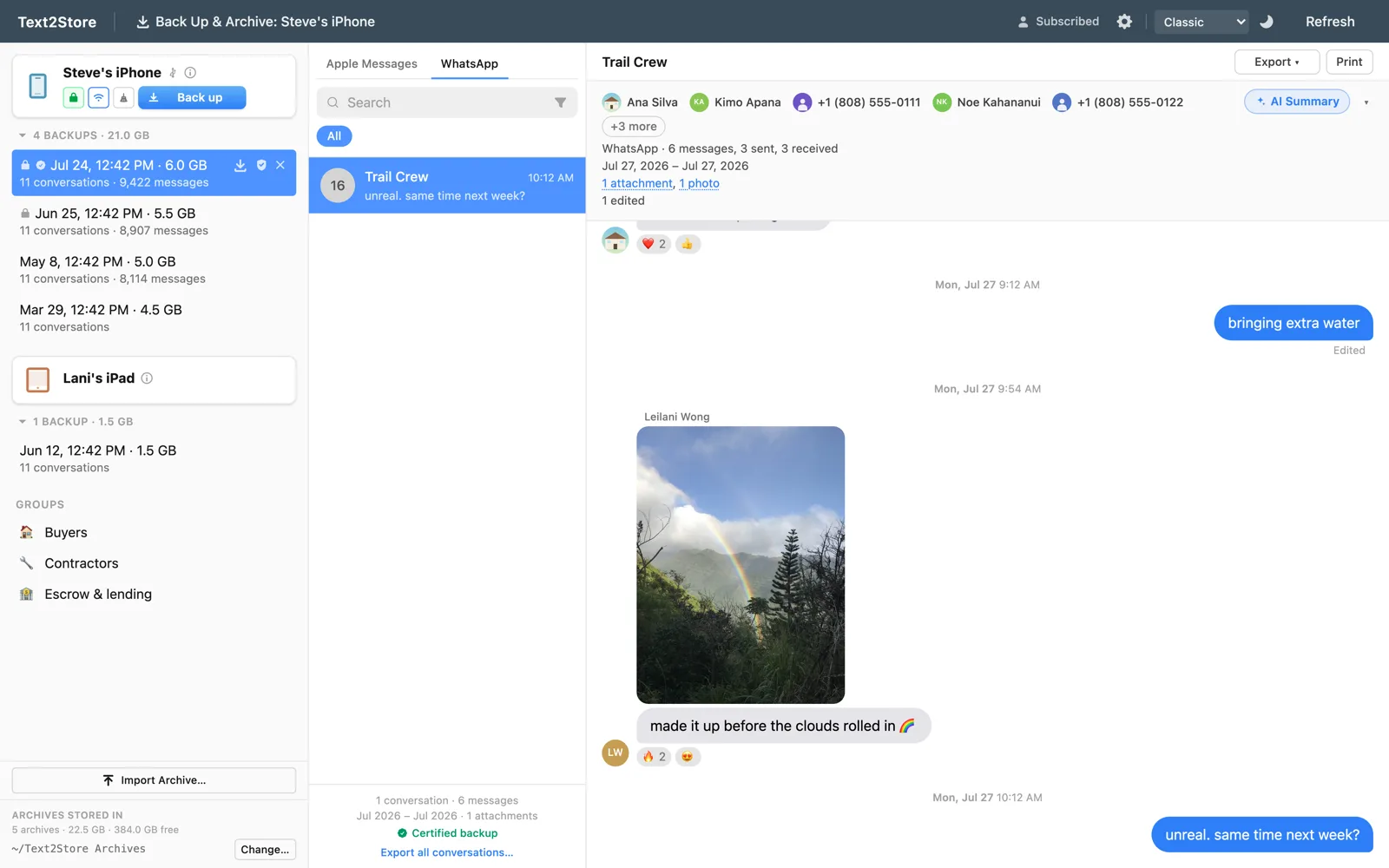
Most people don't know this: when an iPhone backs up to a computer, the backup carries WhatsApp's whole message store along with everything else. Your chats are already in there. The only thing missing is something that can open them, and that is what Text2Store does. Back up the phone and a WhatsApp tab appears beside Apple Messages, with every conversation readable, searchable, and exportable.
Your options, compared
- WhatsApp's own Export Chat gives you a .txt file in a .zip, one chat at a time. It caps out around 40,000 messages without media or 10,000 with, and photos become filenames.
- WhatsApp's iCloud chat backup is a restore point for reinstalling WhatsApp. You can't open or read it on a computer.
- Text2Store reads every chat from the iPhone backup and makes it readable, searchable, and exportable on your computer. It can only show what the backup holds, so messages deleted for everyone are not there (see below).
How to back up WhatsApp chats to your computer
- Install Text2Store on Mac or Windows. Backing up, browsing, and searching are free.
- Connect the iPhone with a USB cable, tap Trust, and click Back Up. On Windows, one extra setup step comes first.
- Open the backup and switch to the WhatsApp tab. Every chat and group is there.
- Export any chat, or all of them at once, in the format you need.
That is the whole procedure. No QR code, no linking a device, no WhatsApp account sign-in on the computer. The WhatsApp help guide has the full details.
What comes across
- One-to-one chats and groups, with the group's name and member list.
- Photos, videos, and attachments that were still on the phone when you backed up. Media WhatsApp had already offloaded is marked as sent but not included, never silently dropped.
- Reactions, grouped the way WhatsApp shows them; click one to see who reacted.
- Names resolved the way WhatsApp does it: your contacts first, then the name a person chose for themselves (with WhatsApp's "~" prefix), then their number.
- Edited messages, marked as edited, with their final wording.
Exporting WhatsApp chats with photos
Every export Text2Store has works on WhatsApp chats: PDF with photos inline and a date and time on every message, CSV for spreadsheets, plain text, and print. For legal and litigation-support teams, RSMF and the tamper-evident verified export work the same way they do for texts. Bulk export writes every chat in the backup to its own file in one run, with an optional date range, and there is no message cap: a ninety-thousand-message group comes out whole.
Search every chat at once
WhatsApp's own search only covers what the phone still holds. On your computer, search covers every WhatsApp conversation in every backup you have made, with the same filters as your texts. Searching is free.
What a WhatsApp backup can't include
These come from how WhatsApp stores data on the phone, and every WhatsApp export says so in the file itself:
- Messages deleted for everyone. WhatsApp removes them from the phone, so no backup made afterwards contains them. Nothing can bring them back.
- Edit history. Only the final wording of an edited message exists.
- Android. This reads WhatsApp from iPhone backups only.
The practical upshot: back up regularly. Each backup keeps what the phone held that day, and Text2Store keeps every backup rather than replacing the last one. More on the why in WhatsApp chats are already in your iPhone backup.
What's free
Backing up and searching are free forever, and you can see that your WhatsApp chats are in the backup before paying anything. Every chat shows its 3 most recent messages, and you can export those to check the output. Reading and exporting whole chats is a $29.99 one-time purchase covering WhatsApp and Apple Messages on every iPhone, iPad, and computer you own.
Common questions
How do I back up WhatsApp chats from my iPhone to my computer?
Back the iPhone up to your computer with Text2Store over a USB cable. WhatsApp's chats are part of that backup, and they appear in a WhatsApp tab beside your texts, where you can read, search, and export them.
Can I export a WhatsApp chat with photos?
Yes. A PDF export puts photos inline where they were sent, with the date and time on every message. Media that WhatsApp had already offloaded from the phone before the backup is marked as not included.
Can I export all my WhatsApp chats at once?
Yes. Bulk export writes every chat in the backup to its own file in one run, as PDF, CSV, or plain text, with an optional date range. There is no message cap.
Is this the same as WhatsApp's iCloud backup?
No. WhatsApp's own iCloud backup is a restore point for reinstalling WhatsApp, and it can't be opened on a computer. Text2Store never touches it; it reads the copy of your chats inside the device backup it makes over the cable, on your own computer.
Can it recover WhatsApp messages that were deleted for everyone?
No. WhatsApp removes those from the phone itself, so they are not in any backup. A message that was on the phone the day you backed up stays in that backup for good.
Does it work with Android?
No. Text2Store reads WhatsApp from iPhone backups, on Mac or Windows.
Check your chats are there, free
Download Text2Store, back up your iPhone, and open the WhatsApp tab. Your chats were already in the backup. Questions go to hello@text2store.com.