
Export WhatsApp chats to PDF on Windows
Get WhatsApp chats from your iPhone onto your Windows PC as PDFs, with photos where they were sent and a date and time on every message. One chat, or every chat at once.
WhatsApp's own Export Chat lives in the phone app. It gives you a .txt file in a .zip, one chat at a time, and it caps out around 40,000 messages without media or 10,000 with. Photos become filenames. If what you want is a document you can read, print, or send, that isn't it.
There is another route. When an iPhone backs up to a computer, the backup carries WhatsApp's message store along with everything else. Text2Store makes that backup on your PC, opens the WhatsApp data inside it, and writes each chat out as a PDF.
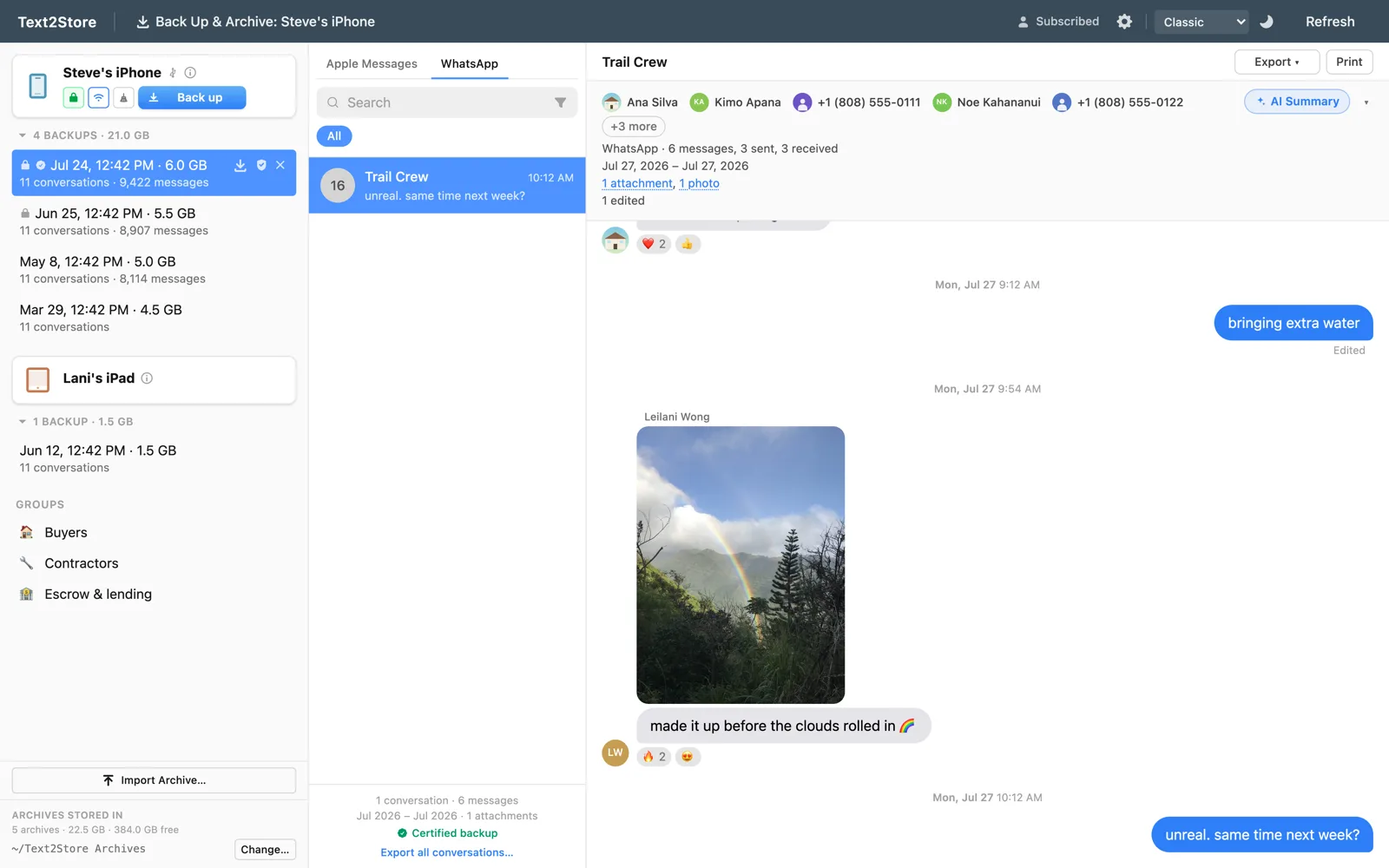
How to export a WhatsApp chat to PDF on a Windows PC
- Install Text2Store from the Microsoft Store.
- Install Apple's free Apple Devices app, then open it once. Windows needs Apple's device support to talk to an iPhone, and iTunes works too. You only have to do this the first time. The iPhone to PC guide has the details.
- Connect the iPhone with a USB cable, tap Trust on the phone, and click Back Up.
- Open the backup and switch to the WhatsApp tab. Every chat and group is there.
- Open a chat and export it as a PDF. To do every chat at once, use Export all conversations at the bottom of the conversation list.
There is no QR code, no linked device, and no WhatsApp sign-in on the PC. If the phone doesn't show up, the device-not-detected checklist goes through the usual causes.
What the PDF contains
- Every message in the chat, with no message cap.
- A date and time on every message, and who sent it.
- Photos inline, where they were sent. Media that WhatsApp had already offloaded from the phone before the backup is marked as not included, never silently dropped.
- Group chats, with the group's name and each sender.
You can limit an export to a date range when you only need part of a long chat.
What it can't do
- Messages deleted for everyone are gone from the phone, so no backup made afterwards contains them.
- Edit history doesn't exist in the backup. Only an edited message's final wording does.
- Android isn't supported. This reads WhatsApp from iPhone backups only.
Want the chats in a spreadsheet instead? CSV export works the same way. For more on what comes across, see backing up WhatsApp chats.
Common questions
How do I export a WhatsApp chat to PDF on Windows?
Back up your iPhone to the PC with Text2Store over a USB cable, open the WhatsApp tab, open the chat, and export it as a PDF. Photos appear inline and every message has its date and time.
Does this work with WhatsApp on an Android phone?
No. Text2Store reads WhatsApp from iPhone backups only, on Windows or Mac.
Do I need to sign in to WhatsApp on the PC?
No. There is no QR code, no linked device, and no WhatsApp sign-in. The chats come from the iPhone backup.
Can I export all my WhatsApp chats to PDF at once?
Yes. Bulk export writes every chat in the backup to its own PDF in one run, with an optional date range.
Do I need iTunes?
No. Windows does need Apple's device support, which comes with the free Apple Devices app from the Microsoft Store. iTunes also provides it. Open Apple Devices once after installing it.
Is the PDF export free?
Backing up and searching are free, and the free version exports each chat's 3 most recent messages so you can check the output. Exporting whole chats is a $29.99 one-time purchase.
Check your chats are there, free
Download Text2Store, back up your iPhone, and open the WhatsApp tab. You can export a chat's 3 most recent messages to see the PDF before paying anything. Questions go to hello@text2store.com.